To maximize your SEO and PPC campaigns, understanding your audience’s search behavior is crucial. Google Keyword Planner is a powerful free tool for discovering valuable keywords and analyzing search trends.
In this guide, I’ll show you how to use Google Keyword Planner to enhance your digital marketing strategy. You’ll learn to access the tool, find new keywords, evaluate search volumes, and turn this data into actionable insights for both SEO and paid campaigns.
Step 1: Access Google Keyword Planner
Create a Google Ads Account: If you don’t already have one, you’ll need to set up a Google Ads account. You don’t need to run an active campaign, but you do need an account to access the tool.
Log In: Once your account is set up, log in to Google Ads.
Step 2: Open Keyword Planner
Navigate to Tools: Click on the “Tools & Settings” icon (a wrench) in the top right corner.
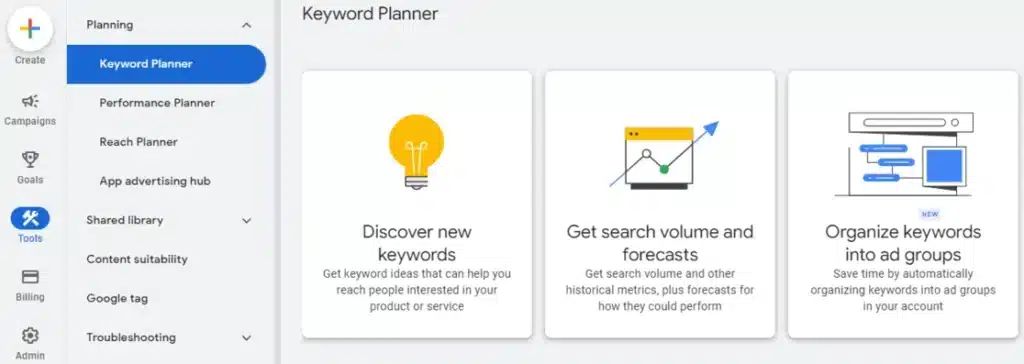
Select Keyword Planner: Under the “Planning” section, select “Keyword Planner”.
Step 3: Choose Your Tool
Google Keyword Planner offers two main tools:
Discover New Keywords: Enter words or phrases related to your business to find new keyword ideas.
Get Search Volume and Forecasts: Enter a list of keywords to see historical search data and forecasts.
Step 4: Discover New Keywords
Enter Keywords: In the “Discover New Keywords” tool, type in keywords related to your business.
Get Results: Google will generate a list of related keywords along with metrics like average monthly searches, competition, and bid estimates.
Step 5: Filter and Sort Results
Use Filters: Apply filters to narrow down your keyword list based on criteria like location, language, and search networks.
Sort by Metrics: Sort the results by metrics such as search volume or competition to prioritize the most relevant keywords.
Step 6: Analyze Keyword Ideas
Review Metrics: Look at the average monthly searches, competition level, and bid estimates for each keyword.
Select Keywords: Choose the keywords that best match your business goals and target audience.
Step 7: Get Search Volume and Forecasts
Enter Keywords: In the “Get Search Volume and Forecasts” tool, input your selected keywords.
Review Data: Analyze the historical search volume data and forecasts to understand trends and potential performance.
Step 8: Plan Your Campaign
Create Keyword Lists: Organize your selected keywords into lists for different campaigns or ad groups.
Set Budgets and Bids: Use the bid estimates to set competitive bids and budgets for your campaigns.
Bonus Tips
Use Negative Keywords: Add negative keywords to filter out irrelevant searches.
Refine by Date Range: Adjust the date range to see how keyword performance changes over time.
By following these steps, you can effectively use Google Keyword Planner to enhance your keyword research and optimize your Google Ads campaigns







 Start chat